1. Vim 入门资料
1.1 vim 的 tutor
终端直接输入:vimtutor
1.2 vim manual
/usr/share/vim/vim81/doc
1.3 github vim 入门到精通
Vim 从入门到精通: https://github.com/wsdjeg/vim-galore-zh_cn
终端直接输入:vimtutor
/usr/share/vim/vim81/doc
Vim 从入门到精通: https://github.com/wsdjeg/vim-galore-zh_cn
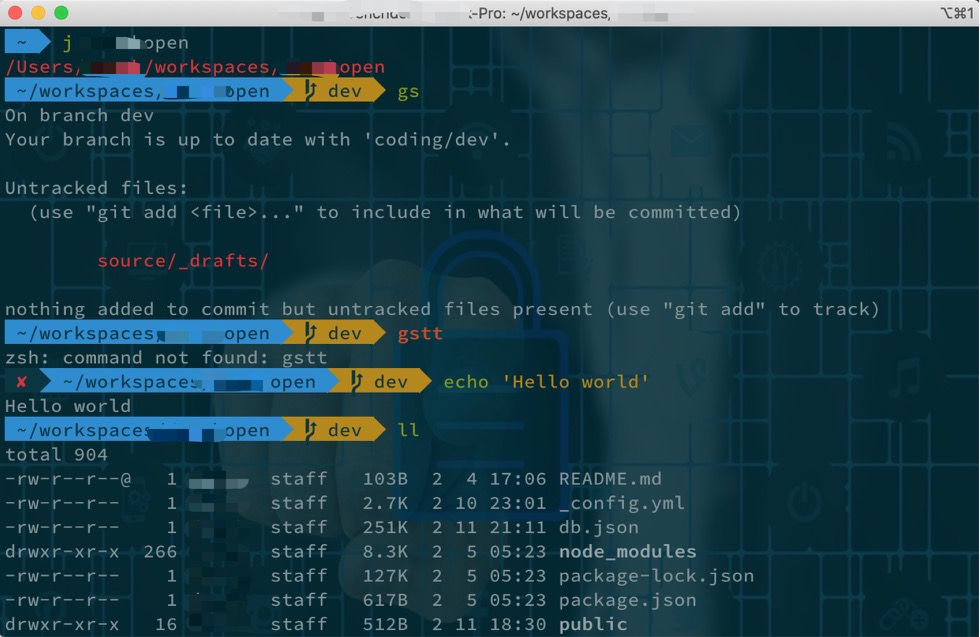
iTerm 2 官网: https://www.iterm2.com/
安装 powerline 字体, 适配 Agnoster 主题
Powerline Font Github : https://github.com/powerline/fonts
在iTerm 2 设置 powerline 字体,个人喜欢 Source Code Pro for Powerline 。
Solarized Github: https://github.com/altercation/solarized
在 iTerm 2 已经预安装了 Solarized 配色方案,在 color 配色方案选择 Solarized Dark 。
完了可以选择一张背景图片,并设置合适的透明度。
mac os 预装了 zsh,切换 shell :
1 | chsh -s $(which zsh) |
oh my zsh 官网:https://github.com/ohmyzsh/ohmyzsh
oh-my-zsh 的安装:
1 | curl |
bash 的环境变量配置文件 ~/.bash_profile , 而 zsh 的环境变量配置文件是 ~/.zshrc。
oh my zsh 官方为用户提供了上百种主题,在 ~/.zshrc 文件中配置主题:
1 | ZSH_THEME="agnoster" |
Agnoster 官网: https://github.com/agnoster/agnoster-zsh-theme
测试字体是否支持
1 | echo "\ue0b0 \u00b1 \ue0a0 \u27a6 \u2718 \u26a1 \u2699" |
路径前缀太长的问题,在 ~/.oh-my-zsh/themes 路径下找到 agnoster.zsh-theme 文件,将里面的 build_prompt 下的 prompt_context 字段,注释掉即可。
在 ~/.zshrc 文件中配置插件:
1 | plugins=(autojump sublime osx zsh-syntax-highlighting git-dw) |
j 是 autojump 命令的简写
j: 快速跳转jo: 快速打开ps: 需要安装autojump的mac平台插件配合使用
ofd: 用 Finder 打开当前目录cdf: cd 到当前 Finder 目录pfd: 打印当前 Finder 路径pfs: 打印当前 Finder 选择的文件路径gl: git pullgs: git statusga: git add gaa: git add –allgc: git commitgcm: git commit -mgp: git pushgb: git branchgba: git branch -agbd: git branch -dgco: git checkoutst: 用 Sublime Text 打开文件
stt: 用 Sublime Text 打开当前目录
sst: sudo st,用于编辑系统文件
find_project: 从当前目录往上(parent directory)查找 sublime, git 工程
create_project: 创建 sublime 工程
Homebrew 是 macOS 或 Linux 缺失的软件包的管理器.
Homebrew 官网: https://brew.sh/
1 | /usr/bin/ruby -e "$(curl -fsSL https://raw.githubusercontent.com/Homebrew/install/master/install)" |
brew update 卡死,没反应?原因一般都是国内获取资源太慢,可以使用国内镜像解决。
| Shortcuts | Action |
|---|---|
| command+return | 在当前行后插入新行 |
| command+shift+return | 在当前行前插入新行 |
| command+control+up&down | 交换上下行 |
| command+shift+D | 复制(多)行 |
| control+shift+K | 删除行 |
| command+L | 选择行 |
| command+/ | 注释 |
| command+] | 向右缩进 |
| command+[ | 向左缩进 |
| command+F | 查找 |
| command+option+F | 替换 |
| command+B | 编译 |
| control+G | 跳转到行 |
| 符号 | 键位 |
|---|---|
| ⌘ | command |
| ⌃ | control |
| ⌥ | option |
| ⇧ | shift |
| ↩ | return |
| ⌫ | delete |
| Shortcuts | Action |
|---|---|
| command+N | 新的窗口 |
| command+shift+N | 新的无痕窗口 |
| command+T | 新的标签页 |
| command+option+right | 标签页切换(向右) |
| command+option+left | 标签页切换(向左) |
| command+W | 关闭当前标签页 |
| control+Enter | 在地址栏中的内容添加”www.”和”.com”然后打开 |
| command+D | 将当前网页加入书签 |
| command+R | 刷新 |
| command+Shift+R | 刷新(忽略缓存) |
| command 和 + | 放大 |
| command 和 - | 缩小 |
| command+option+L | 打开下载内容 |
| command+option+B | 打开书签管理 |
Update your browser to view this website correctly.&npsb;Update my browser now